
The Short Answer: Reduce Friction, Increase Trust, and Ask for Less
If your website forms aren’t converting, the problem is almost never the form itself in isolation. It’s the combination of what you’re asking, when you’re asking it, and whether the visitor trusts you enough to respond. Most mid-market B2B sites we audit convert between 1% and 3% of visitors who see a form. The best-performing forms on these same sites convert between 8% and 15%. The difference isn’t magic. It’s the systematic removal of friction and the deliberate placement of trust signals around the moment you ask someone to hand over their details.
This article walks through the specific, practical changes that move forms from the bottom of that range to the top. We’re not talking about changing a button colour from blue to green. We’re talking about structural changes to form design, placement, surrounding content, and the psychological signals that make a visitor feel safe enough to complete the action you’re asking them to take.
Why Most Forms Underperform (It’s Rarely the Form)
When someone tells us “our form conversion rate is low,” the first thing we do is look at what happens before the visitor reaches the form. In our conversion audits, the most common issue we find isn’t the form itself. It’s that the page hasn’t done enough work to earn the submission by the time the visitor gets there.
Think of it this way. A form is a transaction. You’re asking someone to give you something (their name, email, phone number, details about their problem) in exchange for something (a quote, a callback, a demo, a download). If the perceived value of what they’re getting doesn’t clearly outweigh the perceived cost of what they’re giving, they’ll abandon. Every time.
The three most common reasons forms underperform are poorly defined value exchange, too much friction in the form itself, and insufficient trust signals on the page. Fix all three and you’ll see material improvement. Fix just one and you’ll likely see modest gains. That’s why we treat form conversion as a system rather than a single element to optimise. If you want a deeper look at how conversion works as an interconnected system rather than a collection of isolated tactics, our conversion systems guide covers this in detail.
Audit Your Current Form Before Changing Anything
Before you start redesigning, measure what you actually have. You need three numbers: form view rate (what percentage of page visitors actually see the form, meaning it enters their viewport), form start rate (what percentage begin filling it in), and form completion rate (what percentage submit it). Most analytics setups only track submissions. That’s like measuring how many people leave a shop with a purchase without knowing how many walked through the door or picked up a product.
If your form view rate is low, the problem is page structure. Your form is buried too far down the page, or there’s no compelling reason for visitors to scroll to it. If your form start rate is low relative to views, the form looks too demanding or the value proposition next to it isn’t strong enough. If your completion rate is low relative to starts, there’s friction within the form, such as confusing fields, unexpected requirements, or validation errors that frustrate people.
Setting up these measurements takes about an hour with Google Tag Manager. Track the form entering the viewport as a scroll event, track focus on the first field as a start event, and track the submission as a completion event. This gives you a three-stage funnel that tells you exactly where to focus your effort.
Reduce the Number of Fields (But Not Blindly)
You’ve heard this advice before: fewer fields means more submissions. It’s broadly true. Every field you add increases the cognitive and time cost of completing the form. Research from various conversion studies consistently shows that reducing fields from ten to five can improve conversion rates by 25% to 40%. But there’s a nuance that gets lost in the headline advice.
The goal isn’t to have the fewest possible fields. It’s to have only the fields that are justified by the value exchange. If you’re offering a free PDF guide, asking for a name and email is proportionate. Asking for a phone number, company name, revenue range, and job title is not. But if you’re offering a personalised audit or a detailed quote, asking for more information is entirely reasonable because the visitor expects you to need that information to deliver what they’re requesting.
Which Fields to Cut First
In our experience working with B2B companies, these fields cause the most abandonment relative to their actual usefulness:
- Phone number (when it’s not essential to delivering the promised outcome). People guard their phone numbers far more than their email addresses. If you need it, make it optional and explain why you’re asking.
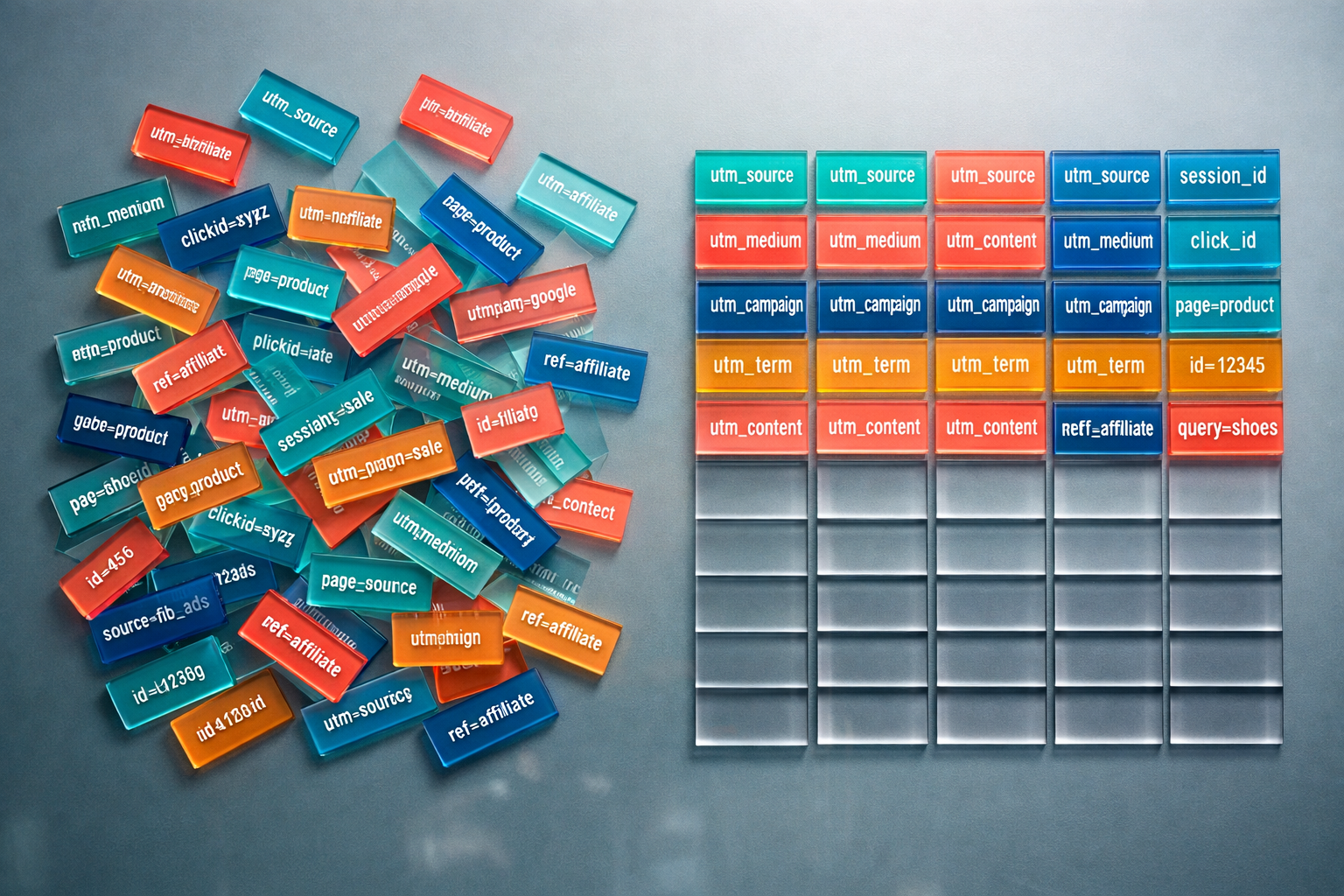
- “How did you hear about us?” This is a marketing attribution question, not a user-serving question. Capture this through analytics, UTM parameters, or a post-submission survey instead.
- Freeform “message” or “tell us about your project” fields. These sound harmless but create paralysis. People don’t know what to write, so they write nothing and leave. If you need qualifying information, use specific dropdown questions instead.
- Separate first name and last name fields. Use a single “Name” field unless your CRM integration genuinely requires them split. Two fields feel like more work than one, even though the difference is trivial.
Our team recommends a simple test: for each field, ask “would the visitor expect us to need this information to deliver what we promised?” If the answer is no, remove it or make it optional.

Rewrite Your Form Headline and Button Text
The words immediately above your form and on your submit button have an outsized impact on conversion. Most forms use generic labels like “Get in Touch” or “Contact Us” as their heading and “Submit” as their button text. These are conversion killers because they describe the action without communicating the value.
Your form headline should state what the visitor gets, not what they’re doing. “Get Your Free Website Audit” outperforms “Request a Consultation” because it’s specific and benefit-oriented. “See Pricing for Your Team Size” outperforms “Contact Sales” because it addresses what the visitor actually wants to know.
Button text follows the same principle. “Submit” is the worst-performing button label in almost every test we’ve seen. It sounds bureaucratic and gives no indication of what happens next. Replace it with text that completes the sentence “I want to…” from the visitor’s perspective. “Get My Free Audit,” “See My Quote,” “Book My Demo,” or even “Send My Request” all outperform “Submit” because they reinforce the value and give the visitor a sense of agency.
One important detail: match the specificity of your button text to the specificity of your offer. If you promise “Get Your Quote in 24 Hours,” the visitor forms an expectation. If you then send a generic “thanks, we’ll be in touch” email, you’ve broken trust immediately. Be specific in your labels, but only as specific as you can actually deliver on.
Place Trust Signals Directly Adjacent to the Form
This is where most B2B websites fail badly. They might have testimonials on a dedicated page. They might have a client logo bar on the homepage. But the form page, the exact moment they’re asking visitors to convert, is often a barren wasteland of empty space and a lonely form.
Trust signals need to be within eyeshot of the form. Not on a different page. Not scrolled past two sections ago. Right there, visible at the same time as the fields the visitor is being asked to fill in. The specific trust signals that work best next to forms are:
- A short, specific testimonial from someone similar to your target visitor. “NexusBond helped us increase inbound leads by 40% in three months” next to a contact form is far more persuasive than a generic “Great company to work with!” buried on a testimonials page.
- Client logos, particularly recognisable ones. Even three or four logos create a “people like me use this” effect.
- A privacy reassurance line directly below the email field or the submit button. Something simple like “We’ll never share your details. Unsubscribe at any time.” This addresses the objection forming in the visitor’s mind at the exact moment they’re hesitating.
- Response time expectation. “We typically respond within 2 hours during business hours” removes uncertainty about what happens after submission. Uncertainty breeds inaction.
What we see on most mid-market sites is that proof elements exist somewhere on the website, but they aren’t strategically placed at conversion points. Moving them costs nothing. The impact is often a 15% to 30% improvement in form completion rates.
Fix the Experience After Submission
Your form conversion rate technically measures submissions, but the post-submission experience directly affects future form conversions through two mechanisms. First, if returning visitors had a bad experience after submitting previously, they won’t submit again. Second, your thank-you page or confirmation message is an opportunity to reinforce the value of what they just did, which reduces “form regret” (where someone submits, then immediately wonders if they’ll be spammed or pestered).
A good post-submission experience includes three things: immediate confirmation that the submission was received (not just a blank page or a redirect to the homepage), clear next steps explaining exactly what happens now and when, and a secondary engagement option like a relevant resource, case study, or calendar booking link. The third element isn’t about squeezing more value from the visitor. It’s about demonstrating that you’re organised and helpful, which builds confidence in their decision to reach out.
One of the worst things we see is forms that submit and then show a generic “Thank you for your submission” message with no further information. The visitor is left wondering: did it actually work? Will someone call me? When? This uncertainty creates a negative emotional association with your brand at the exact moment when the visitor should feel good about their decision.
Use Conditional Logic and Multi-Step Forms for Complex Requests
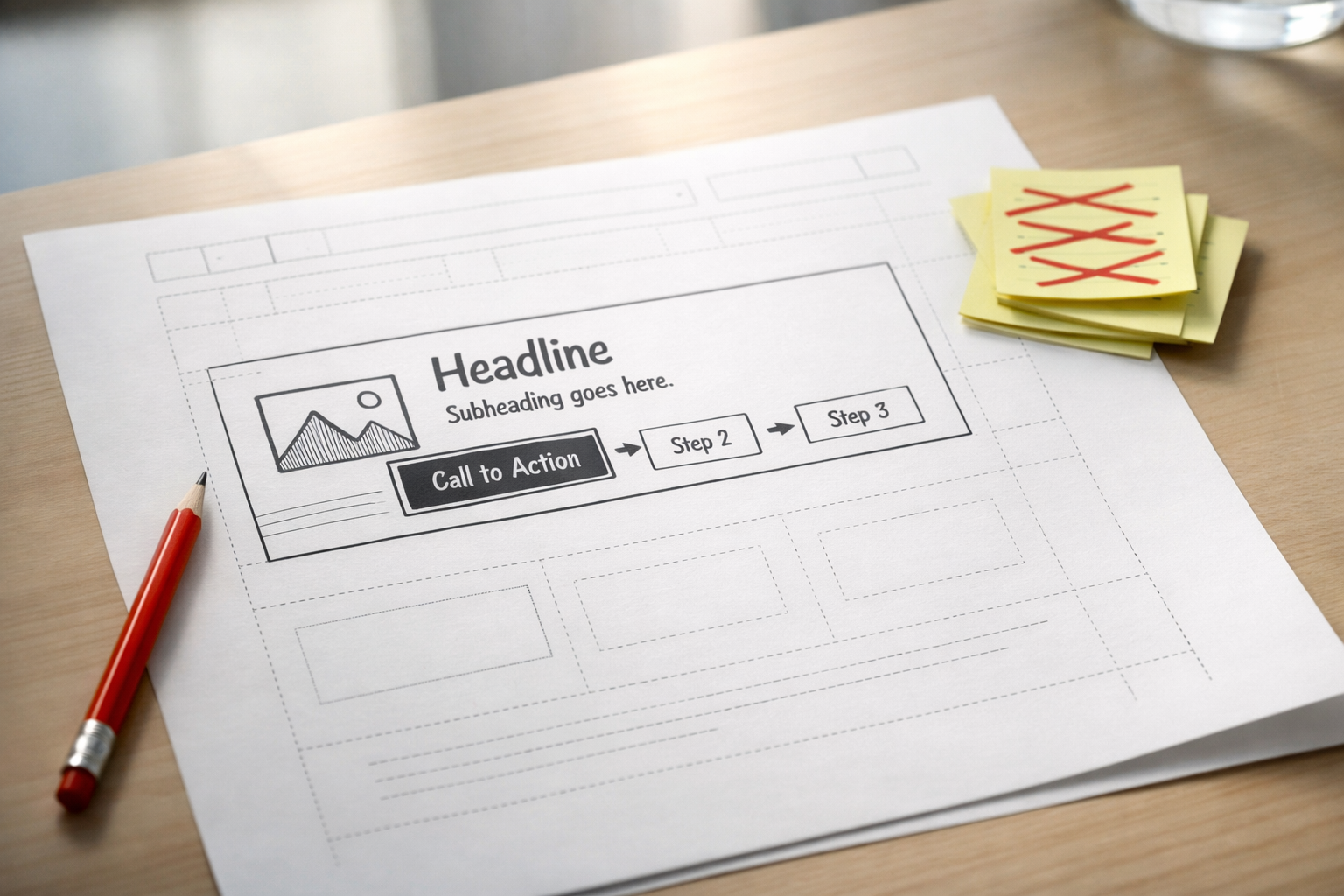
If your form genuinely needs more than five or six fields (because the service requires detailed information to provide an accurate response), a single long form will always underperform. The solution is multi-step forms, sometimes called wizard-style forms, that break the request into two or three logical steps.
Multi-step forms work because of a psychological principle called the commitment escalation effect. Once someone has completed step one (usually the easiest, lowest-friction step), they’re significantly more likely to complete step two because they’ve already invested effort. Starting feels easy. Continuing feels logical. Abandoning feels like wasted effort.
The key to making multi-step forms work is sequencing. Start with the easiest, least sensitive question. “What type of service are you interested in?” or “What’s your company size?” are low-threat openers. Save name and email for the final step. By that point, the visitor has already invested 30 to 60 seconds and provided context-specific information. Giving their email to receive a response feels like a natural conclusion rather than an upfront demand.
Progress Indicators Matter
Always show a progress bar or step indicator (Step 1 of 3, for example) on multi-step forms. This does two things: it sets expectations about how much more effort is required, and it creates a visual “completion motivation” where people want to finish what they’ve started. Forms without progress indicators see noticeably higher abandonment at step two because visitors don’t know if there are two more steps or ten.

Optimise for Mobile (Properly)
More than half of B2B website traffic now comes from mobile devices. Yet many forms are designed on a desktop screen and merely “made responsive,” meaning the fields stack vertically but no other adjustments are made. True mobile form optimisation goes further than stacking.
First, use the correct input types in your HTML. An email field should use type="email" so mobile keyboards show the @ symbol. Phone fields should use type="tel" to trigger the numeric keypad. This tiny technical detail reduces typos and frustration significantly on small screens.
Second, ensure tap targets are large enough. Fields and buttons should be at least 44 pixels tall (Apple’s recommended minimum). Anything smaller and visitors with average-sized thumbs will struggle, especially with dropdown selects and checkboxes.
Third, eliminate any field that isn’t absolutely critical on mobile. Mobile visitors have less patience and more distractions. If your desktop form has eight fields, consider whether your mobile version could work with five. You can always follow up for additional details after the initial submission has been made.
Test One Variable at a Time (And Know What “Enough Data” Looks Like)
A/B testing form changes is the right approach, but most mid-market websites don’t have enough traffic to test subtle variations. If your form gets 200 views per month and converts at 5%, that’s 10 submissions. You need roughly 400 conversions per variation (800 total for an A/B test) to reach statistical significance on most form changes. At 10 submissions per month, that’s a six-year test.
The practical alternative for lower-traffic sites is sequential testing. Make one change, run it for a defined period (typically four to six weeks to account for weekly traffic patterns), compare the conversion rate to the previous period, and move on to the next change. It’s not as rigorous as a proper A/B test, but it’s far better than testing nothing or running tests that never reach significance.
When you do test, prioritise high-impact changes first: reducing the number of fields, rewriting the form headline and button text, and adding trust signals adjacent to the form. These three changes alone typically account for 70% to 80% of the improvement you’ll see. Save smaller tweaks like field order, label placement, and colour changes for later rounds when the big wins are already captured.
Common Mistakes That Silently Kill Form Conversions
Beyond the strategic changes above, several technical and design issues quietly suppress form performance without being obvious:
- Aggressive validation that clears fields on error. If a visitor makes a mistake on one field and your form clears all their other inputs, a significant percentage will leave rather than re-enter everything. Preserve all valid field data when displaying errors.
- CAPTCHA challenges that are too aggressive. Invisible reCAPTCHA or honeypot fields stop most bots without annoying real visitors. Image-based CAPTCHAs (“select all traffic lights”) add friction that costs you legitimate submissions. The spam they prevent is rarely worth the conversions they kill.
- Forms that don’t work with autofill. Most browsers and password managers can auto-complete name, email, and phone fields. If your form uses non-standard field names or custom JavaScript that interferes with autofill, you’re adding unnecessary effort for visitors who expect the convenience.
- No visual distinction between required and optional fields. If some fields are optional, mark them clearly. Better yet, only show required fields by default and offer optional fields as an expandable section. Visitors shouldn’t have to guess which fields they can skip.
- Slow-loading form elements. If your form loads via a third-party embed (HubSpot, Typeform, Gravity Forms) and adds two to three seconds to page load, some visitors will scroll past a blank space where the form should be and never see it. Ensure your form loads quickly or use a lightweight fallback while the full form initialises.
What Good Looks Like: A Practical Benchmark
Benchmarks vary by industry and offer type, but here are realistic form conversion targets for B2B mid-market websites based on what we see across our client base:
- Contact or enquiry forms (visitor is asking for human interaction): 3% to 8% of page visitors.
- Quote or assessment request forms (visitor gets something specific in return): 8% to 15% of page visitors.
- Gated content forms (ebook, whitepaper, template download): 15% to 30% of landing page visitors.
- Newsletter or email signup forms (low commitment, high visibility): 1% to 5% of site-wide visitors who see the form.
If your numbers fall well below these ranges, the changes described in this article should get you into them. If you’re already within these ranges and want to push higher, you’re into the territory of more nuanced optimisation: personalisation based on traffic source, dynamic form fields based on visitor behaviour, and sophisticated post-submission nurture sequences.
Where to Start This Week
If you take away one thing from this article, it’s that form conversion is a system, not a single element. The form fields, the surrounding page content, the trust signals, the value proposition, the post-submission experience, and the technical implementation all interact. Improving any one of them helps. Improving all of them compounds.
Here’s a practical starting sequence. First, set up measurement so you know your form view, start, and completion rates. Second, reduce your fields to only what’s justified by the value exchange. Third, rewrite your form headline and button text to focus on what the visitor gets. Fourth, place at least one testimonial and one privacy reassurance line within eyeshot of the form. These four changes can typically be implemented within a week, and you should expect to see measurable improvement within the first 30 days of tracking.