
What Heatmaps Actually Tell You (And What They Don’t)
Heatmaps show you where visitors click, how far they scroll, and what they hover over on your web pages. They translate raw behavioural data into visual overlays that make it immediately obvious which parts of your site get attention and which parts get ignored. If you install a heatmap tool today and collect a week’s worth of data, you’ll likely discover that at least one element you thought was important is being completely overlooked, and something you barely considered is attracting significant interaction.
But here’s the part most guides skip: a heatmap is a diagnostic tool, not a solution. It tells you what is happening on a page, not why, and certainly not what to do about it. The real skill lies in interpreting the patterns, connecting them to your conversion goals, and making changes that measurably improve performance. That’s what this article covers: how to read heatmaps like someone who’s used them on hundreds of projects, and how to turn what you see into specific, revenue-generating improvements.
The Three Types of Heatmaps You Should Be Using
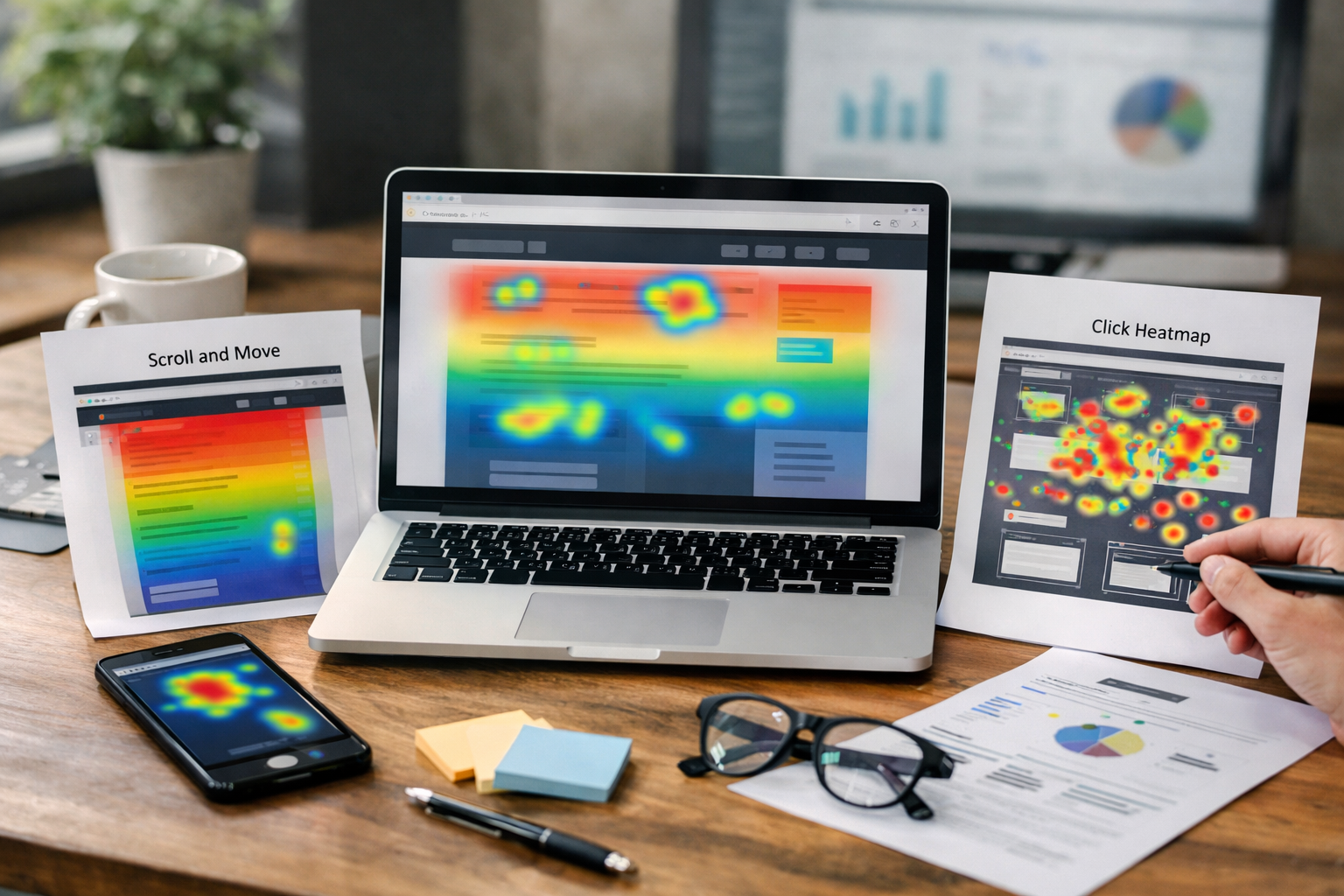
Most heatmap tools offer several visualisation modes, and each one answers a different question. You need all three to build a complete picture of how visitors interact with your pages.
Click Maps
Click maps show you exactly where visitors click or tap on a page. Hot spots appear as warm-coloured clusters (red, orange, yellow), while cold areas stay blue or show no overlay at all. The most useful insight from click maps isn’t where people are clicking; it’s where they’re clicking that isn’t a link. When we run conversion audits, one of the most common findings is that visitors repeatedly click on elements that aren’t interactive: images without links, subheadings that look like buttons, pricing figures that seem tappable. Each of those “rage clicks” represents a moment of frustrated intent. The visitor wanted to take action and your page didn’t let them.
Click maps also expose navigation dead zones. If your main CTA button gets fewer clicks than a secondary link buried in the footer, that’s a layout problem, not a traffic problem. You’re sending visitors to the page. The page is sending them to the wrong place.
Scroll Maps
Scroll maps show you the percentage of visitors who reach each section of a page. The top of every page starts at 100% (by definition, everyone sees it), and the colour gradually cools as you move down. The critical metric here is scroll depth drop-off: the points where a significant chunk of visitors stop scrolling.
On a typical B2B service page, what we see on most mid-market sites is that 40-60% of visitors never make it past the first two sections. If your social proof, case studies, or primary call to action sit below the fold in the bottom third of the page, the majority of your traffic never sees them. Scroll maps make this painfully visible. They show you exactly where you’re losing attention, which tells you exactly where you need to restructure your content hierarchy.
Move Maps (Hover Maps)
Move maps track cursor movement on desktop devices. There’s a loose correlation between where someone moves their mouse and where they’re looking, though it’s not as reliable as eye-tracking. Move maps are most useful for identifying reading patterns. If visitors consistently hover over a particular paragraph or section heading, it suggests that content is catching their attention. If their cursor skips an entire block of text and jumps to the next visual element, that block probably isn’t earning its place on the page.
Move maps are the least actionable of the three types on their own, but they add valuable context when combined with click and scroll data. A section that gets heavy hover activity but no clicks might need a clearer call to action. A section that gets neither hover nor click attention might need to be removed or replaced entirely.
Setting Up Heatmaps Properly
Installing a heatmap script takes five minutes. Setting it up in a way that produces useful, trustworthy data takes more thought. Here’s what most teams get wrong at the setup stage.
First, segment your traffic from the start. A heatmap that blends first-time visitors, returning customers, mobile users, and desktop users into a single visualisation is nearly useless. These audiences behave in fundamentally different ways. A returning visitor who knows your product will scroll past your hero section and head straight to pricing. A first-time visitor from a paid ad might not scroll at all. If you average those two behaviours together, the heatmap tells you nothing actionable about either group. Every decent heatmap tool (Hotjar, Microsoft Clarity, Lucky Orange, Mouseflow) allows you to filter by device type, traffic source, and new vs. returning visitors. Use those filters from day one.
Second, collect enough data before drawing conclusions. A heatmap based on 50 visits is statistically meaningless. For most mid-market B2B sites, you need at least 1,000 to 2,000 pageviews on a specific page before the click and scroll patterns become reliable. Pages with lower traffic might take two to four weeks to accumulate enough data. Resist the temptation to act on patterns you see after the first day.
Third, map heatmaps to specific pages, not your entire site. Trying to heatmap every page at once scatters your attention and slows your analysis. Start with the pages that matter most to revenue:
- Your homepage
- Your top two or three landing pages (by traffic volume)
- Your pricing or services page
- Your contact or enquiry page
These four to six pages account for the vast majority of your conversion pipeline. Fix them first, then expand your heatmap coverage to blog posts, resource pages, and secondary service pages.
Reading Heatmaps: The Patterns That Actually Matter
Once you have clean, segmented data, you need to know what to look for. Not every hot spot or cold zone is a problem. Here are the specific patterns that, in our experience, consistently point to fixable conversion issues.
The “False Bottom” Problem
This is the single most common issue we find in scroll map data. A false bottom occurs when a section of your page visually signals “end of content” even though there’s more below it. Full-width background colour changes, large images that stretch edge to edge, or wide bands of white space can all create the visual impression that the page has finished. Visitors stop scrolling because the design told them to stop.
If your scroll map shows a sharp drop-off at a specific point (say, 85% of visitors are present at one section but only 30% reach the next), look at that exact spot in your design. Nine times out of ten, you’ll find a visual element that’s inadvertently acting as a page terminator. The fix is usually straightforward: add a visual cue that content continues (a partial heading visible at the bottom of the viewport, an arrow, or a content element that clearly “bleeds” into the next section).
Clicks on Non-Interactive Elements
When a click map shows concentrated clicks on something that isn’t a link or button, you’re seeing unmet visitor intent. Common culprits include:
- Product or team photos that visitors expect to enlarge or link somewhere
- Service category names styled like navigation but actually just text
- Pricing tier names or feature labels that look tappable
- Statistics or data points that visitors want to explore further
Each of these is an opportunity. If 200 visitors a month click on a pricing figure expecting more detail, give them more detail. Add a tooltip, link to a detailed pricing page, or expand the section. You’re not guessing at what visitors want. They’re literally showing you with their clicks.
CTA Blindness
Sometimes a heatmap reveals that your primary call to action receives almost no clicks, even though it’s “above the fold” and technically visible. This happens when the CTA is visually competing with too many other elements. If your hero section contains a heading, a subheading, two paragraphs of text, a video thumbnail, three trust badges, and a button, the button becomes just another thing on the page rather than the clear next step.
Click maps make this competitive attention problem visible. If clicks are spread thinly across many elements in a section, no single element is winning. You either need to reduce visual clutter around the CTA or increase its visual weight through size, colour contrast, or whitespace.
The “F-Pattern” Reading Decay
On text-heavy pages, move maps often reveal the classic F-pattern: visitors read the first line or two fully, then scan progressively shorter horizontal segments as they move down. By the fourth or fifth paragraph, they’re only reading the first few words of each line before deciding whether to continue.
This pattern tells you something crucial about content structure. Your most important information, your differentiators, your proof points, your value propositions, needs to appear in the opening words of paragraphs and sections, not buried in the middle of a block of text. If your heatmap shows strong F-pattern behaviour, restructure your content so that each paragraph leads with its key point. Think of it like writing newspaper headlines: front-load the substance.
Turning Heatmap Insights Into Specific Changes
Identifying patterns is only half the job. The other half is knowing which changes to make and in what order. Here’s a practical framework we use when reviewing heatmap data with clients.
Prioritise by Impact on Revenue
Not all heatmap findings are equal. A scroll depth problem on your pricing page is far more urgent than cursor movement patterns on a blog post. Rank every finding by its proximity to a conversion event. Issues on pages where visitors make buying decisions (pricing, contact, product, demo request) get addressed first. Issues on awareness-stage pages get addressed later.
This sounds obvious, but in practice, teams often get distracted by the most visually dramatic heatmap pattern rather than the most commercially significant one. A blog post where nobody scrolls past 30% is interesting. A services page where 70% of visitors never reach your case studies is costing you pipeline.
Restructure Content Hierarchy Based on Scroll Data
If your scroll map shows that only 35% of visitors reach your testimonials section, you have two options: make people scroll further, or move the testimonials higher. In almost every case, moving the content up is faster and more effective than trying to change scrolling behaviour. Your page’s content sequence should match the priority order revealed by your conversion goals, not the order that felt logical when you wrote the brief.
In our conversion audits, the most common structural issue we find is that proof and credibility elements are placed too low on the page. Client logos, results metrics, testimonials, and case study excerpts should appear within the first 40-50% of scroll depth, because that’s where you still have the majority of your audience. Placing them at 80% scroll depth means only your most engaged visitors, the ones who probably don’t need convincing, ever see them.
Fix Navigation and Link Placement Using Click Data
Click maps reveal whether your page flow is guiding visitors toward conversion or scattering them. If your services page gets heavy clicks on “About Us” or “Blog” links rather than “Request a Quote,” your page isn’t building enough confidence or urgency to move people forward. The click map won’t tell you why, but it tells you the outcome clearly enough to prompt investigation.
One practical technique: compare the click distribution on your page against your intended user journey. If you designed the page to move visitors from hero section, to benefits, to proof, to CTA, but the click map shows most interaction happening on sidebar links and footer navigation, the primary content path isn’t compelling enough to hold attention. This is a content and design problem, not a traffic problem. For a deeper look at how page structure and user flow directly affect revenue, our conversion systems guide covers this in detail.
Optimise Forms Using Click and Interaction Data
Heatmaps on form pages are extraordinarily revealing. You can see which form fields get completed, which ones cause hesitation (long hover times before clicking), and where visitors abandon the form entirely. If your enquiry form has six fields and the heatmap shows strong interaction on the first three but sharp drop-off at field four, that fourth field is creating friction. It might be asking for information the visitor doesn’t have handy, doesn’t want to share, or doesn’t understand.
We routinely see this with “budget” fields on B2B enquiry forms. Visitors who are genuinely interested in your services will abandon the form entirely rather than commit to a number before they’ve had a conversation. The heatmap makes this drop-off visible in a way that form analytics alone sometimes miss, because it shows you the hesitation before the abandonment, not just the abandonment itself.
Combining Heatmaps With Other Data Sources
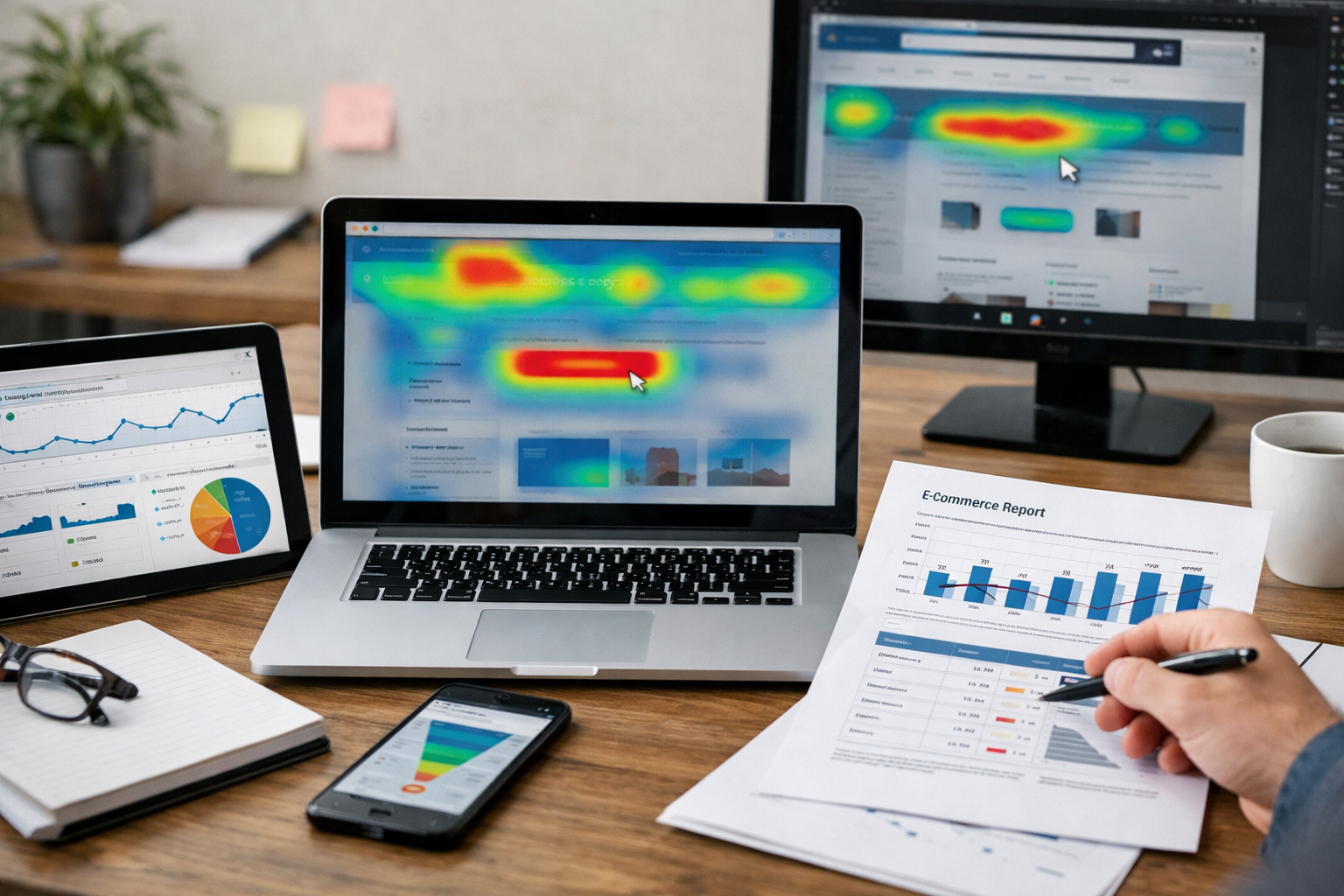
Heatmaps are most powerful when used alongside other analytics tools. On their own, they show behaviour. Combined with quantitative data, they explain performance gaps.
Google Analytics + Heatmaps: If Analytics shows a high bounce rate on a landing page, the heatmap tells you what visitors saw and did before leaving. Did they scroll at all? Did they click something expecting a different result? Did they interact with the page and leave, or did they barely engage? The bounce rate tells you there’s a problem. The heatmap shows you where the problem lives on the page.
Session Recordings + Heatmaps: Most heatmap tools also offer session recording. Heatmaps show you aggregate patterns across hundreds of visitors. Session recordings let you watch individual visitors navigate the page in real time. Use heatmaps to identify problem areas, then watch five to ten session recordings of visitors interacting with those specific areas to understand the behaviour in context. You’ll often notice something the heatmap can’t show, like a visitor scrolling up and down repeatedly between two sections, trying to compare information that should have been presented together.
A/B Testing + Heatmaps: Once you’ve identified a problem with a heatmap and hypothesised a fix, use an A/B test to validate that the fix actually improves conversion. Then run heatmaps on both variants to confirm the behavioural shift you expected. This three-step cycle, diagnose with heatmaps, hypothesise a fix, test with A/B, then verify with heatmaps again, is the most reliable way to make data-driven improvements that stick.
Common Mistakes That Waste Your Heatmap Data
Even teams that install heatmaps and collect data often fail to extract value from them. Here are the mistakes we see most frequently.
Treating heatmaps as one-time reports. A heatmap from six months ago reflects behaviour on a page that may have since changed, with traffic from campaigns that may have ended, viewed by an audience mix that may have shifted. Heatmap data needs to be refreshed regularly, especially after design changes, new campaigns, or seasonal traffic shifts. Think of heatmaps as a continuous monitoring tool, not a one-off audit.
Ignoring mobile data. If 60% of your traffic is mobile (and for many B2B sites, it’s at least 40%), you need separate heatmaps for mobile visitors. Mobile scroll behaviour, tap targets, and interaction patterns are fundamentally different from desktop. A button that’s perfectly clickable on a 24-inch monitor might be frustratingly small on a phone screen. A section that looks compact on desktop might require three full swipes on mobile. Always analyse mobile and desktop heatmaps separately.
Making changes without a hypothesis. Seeing a cold spot on a click map and immediately redesigning that section is reactive, not strategic. Before making any change, articulate a clear hypothesis: “Visitors aren’t clicking the CTA because it’s visually indistinct from the surrounding content. If we increase the button size by 40% and add 20px of whitespace around it, click-through rate should increase.” This discipline forces you to think about why the pattern exists, not just react to its presence.
Optimising low-traffic pages. If a page gets 100 visits a month, heatmap data on that page will take months to become statistically meaningful, and any changes you make will affect so few visitors that the business impact is negligible. Focus your heatmap analysis on pages with enough traffic to generate reliable data and enough conversion significance to justify the effort.
What to Do This Week
If you don’t have a heatmap tool installed, start with Microsoft Clarity. It’s free, requires minimal setup, and provides click maps, scroll maps, and session recordings. Install it on your top five pages by traffic volume. If you already have a tool running, pull up the scroll map for your highest-traffic landing page right now. Check where the 50% scroll depth mark falls. Whatever content sits below that line is being seen by fewer than half your visitors. If your primary CTA, your strongest testimonial, or your key differentiator is below that line, move it up. That single change, informed by one heatmap, applied to one page, will likely do more for your conversion rate than any amount of copywriting tweaks or colour changes. Start there, measure the result, and expand from that foundation.